
Getting Started with ESP32: Complete Guide for FYP Students in Malaysia
New to ESP32? This step-by-step guide covers setup, your first WiFi project, connecting sensors, and pushing data to the cloud — everything you need for a strong IoT FYP.
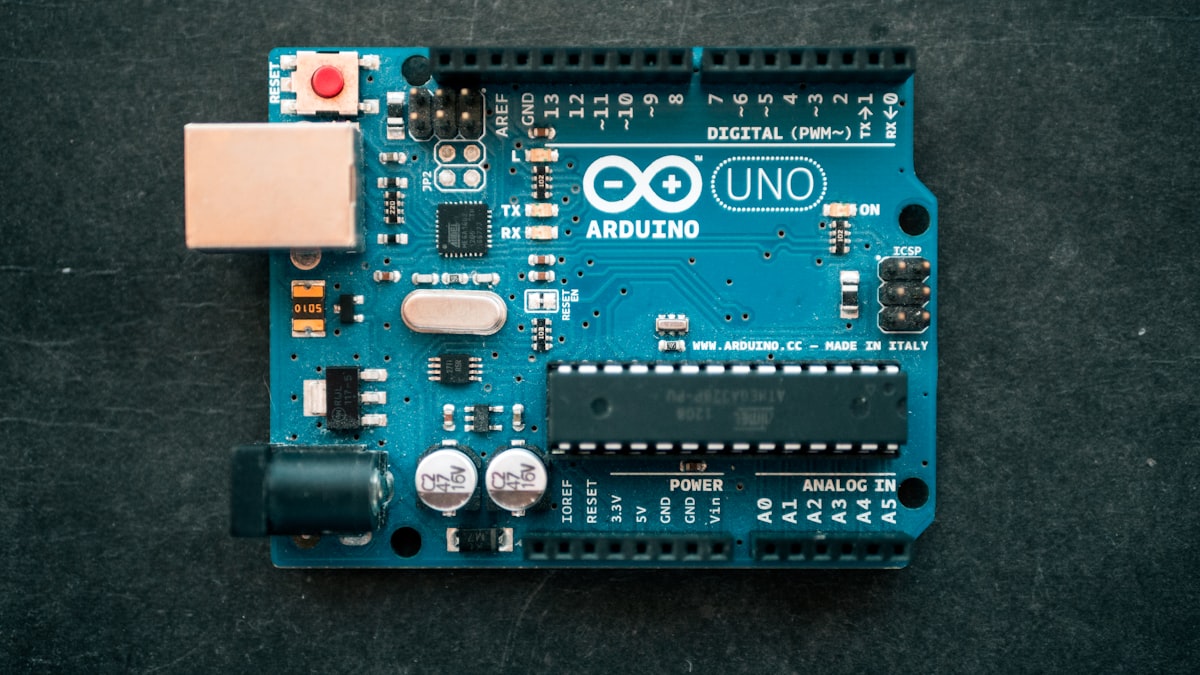
If you're building an IoT project for your Final Year Project (FYP) in Malaysia, the ESP32 is almost certainly the right microcontroller to use. It's fast, it has Wi-Fi and Bluetooth built in, it's cheap, and it runs on the same Arduino IDE you probably already know.
This guide will take you from zero — unboxing the ESP32 — to a working IoT project that sends sensor data to the cloud. No fluff, no skipping steps.
Before you connect sensors, keep the ESP32 Pinout Tool open. It helps you check safe GPIO pins, ADC2 + WiFi cautions, boot strapping pins and input-only pins before wiring.
Why ESP32 Instead of Arduino Uno for Your FYP?
This question comes up constantly. Here's the honest answer:
The Arduino Uno is a classic learning board. It's great for understanding basic electronics. But for a modern FYP in 2025, it has serious limitations:
- No Wi-Fi or Bluetooth — you need extra shields (ESP8266, HC-05) to add connectivity
- Slow processor — 16MHz is fine for blinking LEDs, not for handling JSON, HTTP, or MQTT
- Limited RAM — 2KB SRAM makes complex code difficult
- More expensive setup — once you add Wi-Fi and other modules, cost adds up fast
The ESP32 addresses every single one of those problems:
| Feature | Arduino Uno | ESP32 |
|---|---|---|
| Processor | 8-bit, 16MHz | Dual-core 32-bit, 240MHz |
| RAM | 2KB | 520KB |
| Flash Storage | 32KB | 4MB (typically) |
| Wi-Fi | No (needs module) | Built-in 802.11 b/g/n |
| Bluetooth | No (needs module) | Built-in BLE + Classic |
| Analog Inputs | 6 (10-bit) | 18 (12-bit) |
| PWM Channels | 6 | 16 |
| Price in Malaysia | RM 18–25 (clone) | RM 15–30 (clone) |
For any FYP that involves IoT, cloud connectivity, or data logging, the ESP32 is the better choice — and it costs the same or less.
Where to Buy ESP32 in Malaysia (and What to Buy)
You'll find ESP32 boards on Shopee, Lazada, and local electronics shops. Here's what to look for:
Recommended boards for FYP beginners:
- ESP32 DevKit V1 (38-pin) — most common, great documentation, cheap at RM 15–22
- ESP32-WROOM-32 module — same chip, slightly different pinout, RM 12–18
- ESP32-CAM — has a built-in camera, great for surveillance/recognition projects, RM 25–35
What to avoid:
- Unnamed no-brand boards with no documentation (they're fine but troubleshooting is harder)
- Boards without a USB-to-serial converter built in (you'll need a separate programmer)
Buying locally in Malaysia: Rectronx stocks ESP32 boards with fast delivery across Malaysia. You can also find them at Cytron, MyDuino, and Element14.
Step 1: Install the Arduino IDE and Add ESP32 Support
The ESP32 doesn't come with native Arduino IDE support — you need to add it manually. This takes about 5 minutes.
1. Download Arduino IDE
Go to arduino.cc/en/software and download the latest version for Windows/Mac/Linux. Install it normally.
2. Add the ESP32 Board Manager URL
Open Arduino IDE → go to File → Preferences.
In the "Additional Boards Manager URLs" field, paste this URL:
https://raw.githubusercontent.com/espressif/arduino-esp32/gh-pages/package_esp32_index.json
Click OK.
3. Install the ESP32 Boards Package
Go to Tools → Board → Boards Manager. Search for esp32. You'll see "esp32 by Espressif Systems". Click Install. This downloads ~200MB — let it finish.
4. Select Your Board
Go to Tools → Board → ESP32 Arduino → ESP32 Dev Module.
Set the upload speed to 115200 under Tools → Upload Speed.
5. Select Your Port
Plug in your ESP32 via USB. Go to Tools → Port and select the COM port that appears (e.g. COM3 on Windows, /dev/ttyUSB0 on Linux/Mac).
If no port appears, you may need to install the CP2102 or CH340 driver depending on your board's USB chip. Search for "CP2102 driver download" or "CH340 driver download" — both are free and quick to install.
Step 2: Your First Sketch — Wi-Fi Network Scanner
Before anything else, let's confirm the Wi-Fi works. This sketch scans for nearby networks and prints them to the Serial Monitor.
#include "WiFi.h"

void setup() {
  Serial.begin(115200);
  WiFi.mode(WIFI_STA);
  WiFi.disconnect();
  delay(100);
  Serial.println("ESP32 Wi-Fi Scanner Ready");
}

void loop() {
  Serial.println("Scanning for networks...");
  int n = WiFi.scanNetworks();

  if (n == 0) {
    Serial.println("No networks found.");
  } else {
    Serial.print(n);
    Serial.println(" networks found:");
    for (int i = 0; i < n; ++i) {
      Serial.print(i + 1);
      Serial.print(": ");
      Serial.print(WiFi.SSID(i));
      Serial.print(" (");
      Serial.print(WiFi.RSSI(i));
      Serial.print(" dBm) ");
      Serial.println(WiFi.encryptionType(i) == WIFI_AUTH_OPEN ? "Open" : "Encrypted");
      delay(10);
    }
  }
  Serial.println("");
  delay(5000);
}
Upload this sketch and open the Serial Monitor (Tools → Serial Monitor, baud rate 115200). You should see a list of Wi-Fi networks nearby. If you see them, your ESP32 is working perfectly.
Step 3: Connect a DHT11 Sensor and OLED Display
Now let's build something real: a temperature and humidity display.
Components needed:
- ESP32 DevKit
- DHT11 temperature & humidity sensor (~RM 5–8)
- 0.96" OLED display (I2C, SSD1306) (~RM 10–12)
- Jumper wires
Wiring:
| Component | ESP32 Pin |
|---|---|
| DHT11 Data | GPIO 4 |
| DHT11 VCC | 3.3V |
| DHT11 GND | GND |
| OLED SDA | GPIO 21 |
| OLED SCL | GPIO 22 |
| OLED VCC | 3.3V |
| OLED GND | GND |
Install Required Libraries:
In Arduino IDE, go to Sketch → Include Library → Manage Libraries.
Search for and install:
DHT sensor libraryby AdafruitAdafruit Unified Sensorby AdafruitAdafruit SSD1306by AdafruitAdafruit GFX Libraryby Adafruit
Sketch:
#include <DHT.h>
#include <Wire.h>
#include <Adafruit_GFX.h>
#include <Adafruit_SSD1306.h>

#define DHTPIN 4
#define DHTTYPE DHT11
DHT dht(DHTPIN, DHTTYPE);

#define SCREEN_WIDTH 128
#define SCREEN_HEIGHT 64
Adafruit_SSD1306 display(SCREEN_WIDTH, SCREEN_HEIGHT, &Wire, -1);

void setup() {
  Serial.begin(115200);
  dht.begin();

  if (!display.begin(SSD1306_SWITCHCAPVCC, 0x3C)) {
    Serial.println("SSD1306 allocation failed");
    for (;;);
  }
  display.clearDisplay();
  display.setTextSize(1);
  display.setTextColor(WHITE);
}

void loop() {
  float h = dht.readHumidity();
  float t = dht.readTemperature();

  if (isnan(h) || isnan(t)) {
    Serial.println("Failed to read from DHT sensor!");
    return;
  }

  display.clearDisplay();
  display.setCursor(0, 0);
  display.setTextSize(2);
  display.print("Temp: ");
  display.print(t, 1);
  display.println("C");
  display.print("Hum: ");
  display.print(h, 1);
  display.println("%");
  display.display();

  Serial.print("Temperature: ");
  Serial.print(t);
  Serial.print("C | Humidity: ");
  Serial.println(h);

  delay(2000);
}
Upload and you'll see live temperature and humidity readings on your OLED display. This is already a functional FYP component.
Step 4: Send Data to Blynk (Cloud Dashboard)
Now let's push your sensor data to the cloud so you can monitor it from your phone — anywhere.
Create a Blynk account: Go to blynk.io and sign up for free.
Create a new template, add a device, and note your Auth Token, Template ID, and Template Name.
Install the Blynk library: In Library Manager, search for Blynk and install "Blynk by Volodymyr Shymanskyy".
Updated Sketch with Blynk:
#define BLYNK_TEMPLATE_ID "YOUR_TEMPLATE_ID"
#define BLYNK_TEMPLATE_NAME "YOUR_TEMPLATE_NAME"
#define BLYNK_AUTH_TOKEN "YOUR_AUTH_TOKEN"

#include <WiFi.h>
#include <BlynkSimpleEsp32.h>
#include <DHT.h>

char ssid[] = "YOUR_WIFI_NAME";
char pass[] = "YOUR_WIFI_PASSWORD";

#define DHTPIN 4
#define DHTTYPE DHT11
DHT dht(DHTPIN, DHTTYPE);

BlynkTimer timer;

void sendSensorData() {
  float h = dht.readHumidity();
  float t = dht.readTemperature();

  if (!isnan(h) && !isnan(t)) {
    Blynk.virtualWrite(V0, t);  // Temperature on virtual pin V0
    Blynk.virtualWrite(V1, h);  // Humidity on virtual pin V1
    Serial.print("Temp: "); Serial.print(t);
    Serial.print(" | Hum: "); Serial.println(h);
  }
}

void setup() {
  Serial.begin(115200);
  dht.begin();
  Blynk.begin(BLYNK_AUTH_TOKEN, ssid, pass);
  timer.setInterval(2000L, sendSensorData);
}

void loop() {
  Blynk.run();
  timer.run();
}
Replace the placeholders with your actual Blynk credentials and Wi-Fi details. In the Blynk app, add gauge or chart widgets linked to V0 and V1. You'll see live data from your sensor on your phone.
Common Beginner Mistakes (And How to Avoid Them)
These mistakes cost students hours. Learn from them now:
- Wrong baud rate in Serial Monitor — always set to 115200 when using ESP32. The default 9600 will show garbage characters.
- Powering ESP32 from 5V GPIO — the ESP32 runs on 3.3V logic. Some pins are NOT 5V tolerant. Use level shifters for 5V sensors.
- Choosing pins without checking the pinout — use the ESP32 Pinout Tool before wiring relays, analog sensors, OLED displays or GPS modules.
- Not installing CP2102/CH340 drivers — if your board doesn't appear as a COM port, install the USB driver first. This trips up almost every first-timer.
- Forgetting to select the correct board — make sure you've selected "ESP32 Dev Module" under Tools → Board, not Arduino Uno.
- Uploading while Serial Monitor is open on Windows — sometimes you need to close the Serial Monitor before uploading, or hold the BOOT button during upload.
- DHT11 giving NaN readings — usually a wiring issue (data pin not connected to the correct GPIO) or a missing 10kΩ pull-up resistor on the data line.
- Wi-Fi not connecting — double-check your SSID and password. Also, ESP32 only connects to 2.4GHz Wi-Fi, not 5GHz. Make sure your router broadcasts a 2.4GHz network.
What to Build Next
Now that you have the basics down, here are natural next steps for your FYP:
- Add more sensors — soil moisture, MQ-2 gas sensor, ultrasonic distance sensor
- Add an LCD or larger TFT display for a standalone user interface
- Use MQTT (Mosquitto broker + Node-RED) instead of Blynk for a more professional setup
- Add a relay module to control lights, pumps, or fans from your phone
- Use Firebase instead of Blynk if you need a proper database backend
- Try ESP32-CAM if your FYP needs image capture or a live camera feed
Need Components Delivered to Your Doorstep?
At Rectronx, we stock ESP32 DevKit boards, DHT11/DHT22 sensors, OLED displays, and everything else you need for your FYP — with fast delivery across Malaysia.
Whether you're in KL, Selangor, Johor, Penang, or anywhere else in Malaysia, we've got you covered. Not sure what to order? Just tell us your FYP idea and we'll help you put together the right list.
👉 Chat with Rectronx on WhatsApp
Good luck with your project — the hardest part is just getting started.
Looking for more inspiration? Browse 500+ FYP project titles by category and get a free quote.